

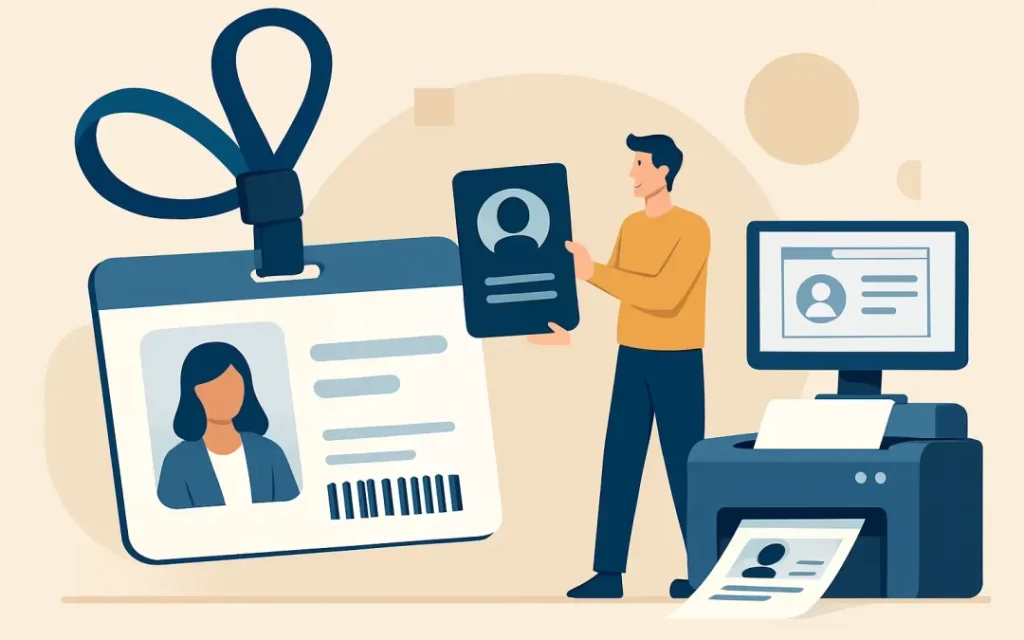
The fastest way to miss a launch date is to approve an ID card design that looks fine on screen but fails in production – fuzzy text, clipped logos, unreadable barcodes, or colours that drift from your brand. If you are issuing cards for staff, students, contractors, members, or event access, you want something that is clear at a glance, hard to misuse, and straightforward to reprint.
This is a practical guide to how to design an ID card so it holds up in the real world: on a lanyard, in a wallet, at a door reader, and under fluorescent lighting.
Start with the job your ID card needs to do
Before you open a design file, decide what the card must achieve in the first two seconds someone sees it. Is it mainly visual identification, or is it primarily access control? Will it be checked by security at distance, or tapped on a reader? Is it a long-life staff credential, or a short-term event pass?
These answers affect everything. A card meant for quick visual checks should prioritise a large portrait photo and bold name. A card for doors and turnstiles needs reliable encoding and space for a barcode or proximity technology. A student card might need a number that works for library systems and cashless canteen payments. You can do all of the above on one card, but trade-offs are real: the more functions you pack in, the harder it is to keep the layout clean and readable.
Choose the right size and orientation (then commit)
Most organisations use the CR80 format (bank-card size). It fits standard holders, reels, and wallets, and it is the safest choice if you want zero surprises when people bring their own accessories.
Pick portrait or landscape based on use. Portrait cards tend to show a larger photo and read naturally when worn on a lanyard. Landscape can work well for wallets and for cards that carry more text across the top or bottom. The key is consistency across departments so replacements, holders, and templates stay compatible.
Set up your artwork for print: bleed, safe area, resolution
If you only get one technical section right, make it this one.
When printing plastic cards, artwork is trimmed after printing. That means you need bleed (extra background beyond the final edge) so you do not get white slivers. You also need a safe area so important content is not too close to the edge and risk being cut off.
Work to these practical rules unless your print partner specifies otherwise:
- Add 3 mm bleed on all sides for any background colour, photo, or pattern that touches the edge.
- Keep critical content (names, numbers, logos, barcodes) at least 3 mm inside the trim line.
- Use high-resolution images. For photos and logos, 300 dpi at final size is the standard expectation. If a headshot looks slightly soft in a Teams window, it will look worse on a printed card.
Avoid building ID cards in tools that export low-quality bitmaps. If you must use office software, export at the highest possible quality and ask for a proof. For brand-critical projects, a proper print-ready PDF from a professional layout tool saves time and prevents rework.
Build a layout that works at arm’s length
An ID card is not a brochure. Most people read it quickly, often while it is moving.
Start with a simple hierarchy:
- Organisation or site identifier (logo or name)
- Person identifier (photo + name)
- Role or access level (department, year group, visitor type)
- Secondary data (ID number, expiry date, barcode)
Give the photo enough real estate. If your ID relies on visual checks, aim for a head-and-shoulders portrait, not a tiny circle crop. Keep the face unobstructed and avoid heavy filters – they reduce recognition.
Names should be readable without squinting. Use one clean typeface, and do not set key text in all caps unless you have tested legibility. Thin fonts can break up on plastic, especially on light text over a dark background.
Leave breathing room. Busy backgrounds look attractive in a mock-up but can make variable data (like names and numbers) hard to read once you have hundreds of different entries.
Get brand colours right, not “close enough”
Consistency matters when you are issuing IDs across teams, sites, or academic years. If your brand uses a specific blue and it prints purple, it will look unofficial.
Use PMS (Pantone) references where you can, and keep a record of what you used so reorders match. Remember that screens are backlit and cards are reflective – the same RGB colour can look different once printed. That is why proofing is not a formality.
If colour accuracy is critical, work with a supplier who can match your PMS colours and will flag potential issues early. Lotsa Lanyards, for example, prints in any PMS colour at no extra charge and can support you from artwork through sampling to delivery via https://www.lotsalanyards.com.au.
Plan variable data early: names, numbers, roles, expiry
Most ID cards are not one design – they are one design plus a database.
Decide what data fields you need and define the format. Will staff numbers be 6 digits or 8? Do you include leading zeros? Are job titles free text or a controlled list? Do you want an expiry date for contractors and visitors?
The more disciplined you are upfront, the faster production goes. It also reduces errors that create real operational cost: reprints, access failures, and the admin time of handling exceptions.
Design with long names in mind. You will always have a “Christopher” or a double-barrelled surname that breaks your layout. Set rules for truncation, font scaling, or allowing two lines – then test them.
Add security features that match your risk level
Security does not have to be complicated, but it should be intentional.
For low-risk environments, clear photo IDs with an expiry date may be enough. For higher-risk sites, consider elements that are difficult to copy or easy to verify. That could be a signature panel, a holographic overlay, microtext, a unique background pattern, or UV print.
Be realistic about what your team can check. A security feature that no one looks for is not doing much. If your reception staff can reliably check photo, name, and colour-coded role, lean into those and keep the system simple.
Barcodes, QR codes, and access tech: design for scanning
Codes fail for predictable reasons: they are too small, low contrast, distorted, or placed where holders cover them.
Keep codes on a flat area away from the slot punch if the card will be worn on a lanyard. Avoid printing codes over busy graphics. Black on white (or very light) is still the most reliable combination for scanners.
Size depends on scanner and distance, but tiny codes are a gamble. If you are not sure, print test samples and scan them with the actual devices at the actual locations. Also consider wear: a code that scans on day one may not scan after months of scratches if it is placed where cards rub against clothing or keys.
If you are using RFID or proximity cards, confirm the required card type and whether any printing constraints apply. Some technologies work best with particular card constructions, and some finishes can affect readability.
Pick materials and finishes that suit daily use
PVC is the standard for plastic ID cards. It is cost-effective and durable, but finishes change how a card feels and how long it stays sharp.
Gloss can make colours pop, but it can also reflect light and show scratches sooner. Matte is easier to read under glare and often looks more premium for corporate credentials. If you need to write on the card (temporary visitor notes, for example), you may want a dedicated signature or write-on panel rather than hoping a pen will work on laminate.
If your cards will be used outdoors, near water, or in industrial environments, ask about durability options. The right finish and holder choice can extend the life of the card significantly.
Don’t forget the ecosystem: lanyards, holders, reels, and punches
ID cards rarely live alone. Slot punching, holder type, and attachment choice should be designed in from the start.
If your card is going into a rigid holder, anything near the edge may be obscured. If it is going into a soft holder, the front can flex and scuff. If staff use a reel, the card is more likely to swing and pick up scratches. These are not reasons to avoid accessories – they are reasons to place your key information where it will stay visible.
Also decide whether you need a slot punch, a round hole, or no punch at all (common when cards sit inside holders). If you are encoding RFID, confirm that the punch position will not interfere with the antenna area.
Proof like you mean it
A proof is not just checking spelling. It is checking function.
Look for: edge safety, photo clarity, brand colour, barcode scannability, and readability under the lighting where the card will be used. Print one and put it in the actual holder. Wear it on a lanyard. Tap it on the reader. If it is for an event, test it with the staff who will be checking IDs at pace.
If you are ordering in batches, keep a locked template and document every setting: sizes, colours, fonts, and data rules. That is how you avoid a “version three looks different” problem six months from now.
A good ID card is the one that saves your team time every single day. Design it for real hands, real scanners, and real deadlines – and you will feel the difference the first time you do a bulk issue without a queue forming at reception.